
In this article we are going to look at a basic foundational concept of Excel, namely: using absolute referencing with formulas. To illustrate this, we’ll use an example, see figure 1. (Note that the example is a pared down version of the one used in the article on the scenario manager Excels Scenario Manager Part of What-If-Analysis and its companion article regarding naming cells and ranges How-To Name a Cell or a Range of Cells.) In the example data set, suppose we are a fictitious business that sells candies and sweets. We sell these items, likely to other businesses, by the crate. Each crate has only one type of product. The sizes of all the crates are all the same, but the weight for each crate will be different. The products are listed in locations A3 to A15 and the weight of each of the crates holding those products are in locations B3 to B15.
The charging model for this business is to price each crate with a starting value of $559 (stored in H10) assuming a minimum weight of 200 pounds (the value stored in H4). Any weight over 200 pounds, is multiplied by $5 (that value is stored in H7) and added to the minimum starting value. (Note that for this example we are assuming all the values in cells B3 to B15 are greater than 200.)
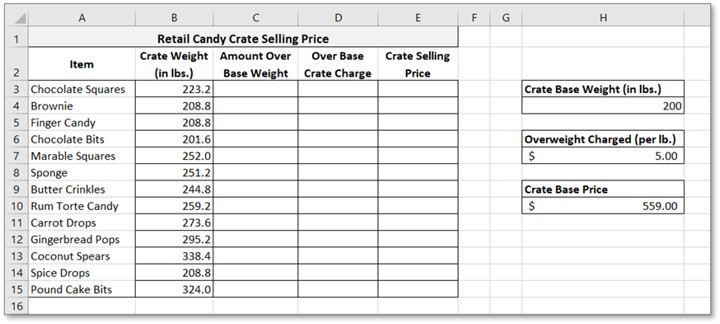
Fig. 1: Example Data Set – The Starting Point
The first calculation we need to do is “Amount Over Base weight.” To do this let us start in cell C3 where we need to calculate how much over the Crate Base Weight this particular Item is, i.e., the Chocolate Squares Crate weighs 223.2 pounds which is 23.2 pounds over the Crate Base Weight of 200 pounds. The formula in cell C3 would be =B3-H4 and the results can be seen in cell C3 (refer to Fig. 2):
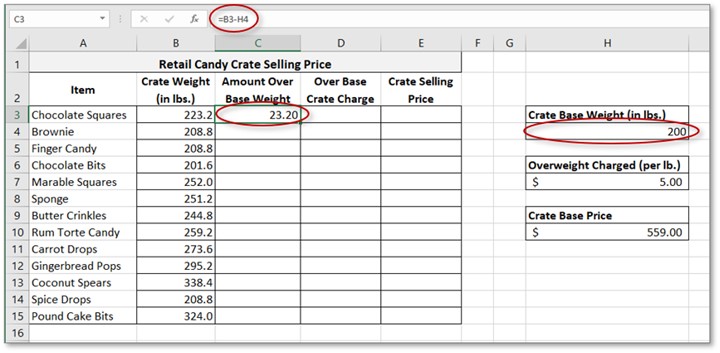
Fig. 2: Example File. The first calculation – the Amount Over the Base Weight
The formula =B3-H4 seems straightforward, but we run into a problem when we autofill the calculations into cells C4 to C15. (To autofill, use the fill handle which is the small square on the bottom right corner of the selected cell C3; then click and drag to cell C15; or just double click on the fill handle.):
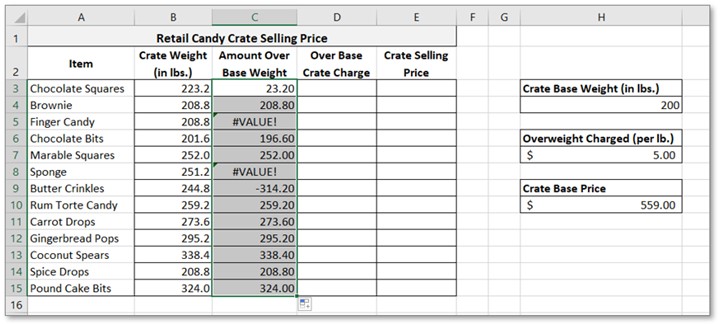
Fig. 3: Example File. Errors with the calculation of the “Amount Over the Base Weight.”
So, what went wrong? The formula in cell C3 is correct, i.e., =B3-H4, but If we click in cell C4 we can see that the formula that Excel used is: =B4-H5 (Figure 4).
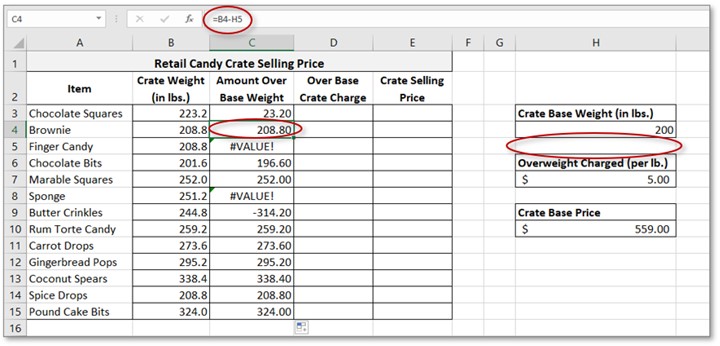
Fig. 4: Details of the errors with the calculation of “Amount Over Base Weight”. Focusing on location C4.
Excel changed B3 to B4 which is what we want, but Excel also changed H4 to H5 and there is no value in cell H5, so the calculation just subtracted a zero.
Let us check one more location and look at cell C5 (see figure 5). This has the formula =B5-H6. Again, Excel updated the cells, which is okay for the B5 location, but the other location, H6, contains text and not a number, so we got an error. Excel is automatically increasing all the cell addresses.
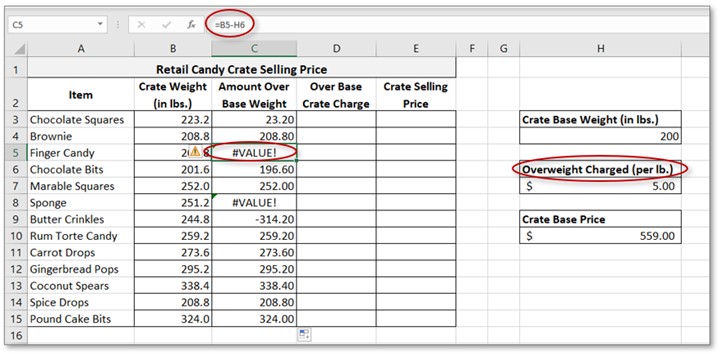
Fig. 5: Details of the errors with the calculation of the “Amount over Base weight”. Focusing on location C5.
Excel is using relative addressing by default. However, we need to let Excel know that we don’t want cell H4 changed when we use the fill-handle (or make a copy). This is where absolute referencing is used, and this is done by using the $ sign before the column reference and another $ before the row reference. For this example, the formula would be =B3-$H$4. One way of remembering this is to say to yourself: lock column H and lock row 4. (Note that even though we do not necessarily need to lock row 4 in this example it is common practice to lock both column and row if it doesn’t interfere with the calculation. Locking both is known as absolute referencing, and locking only one is known as mix referencing):
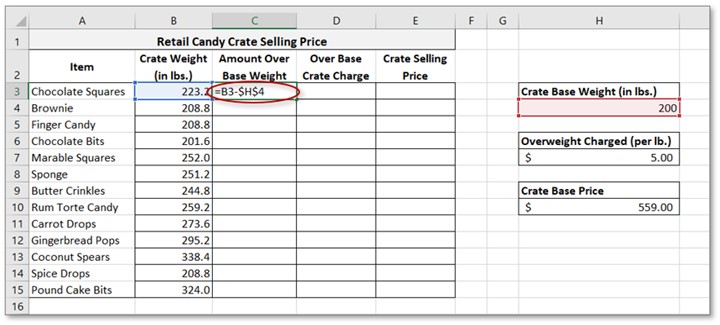
Fig. 6: Example File: Calculating the “Amount Over Base Weight” using absolute referencing for cell location.
Next, we will use the fill handle; and this time we get the results that we are looking for (see figure 7):
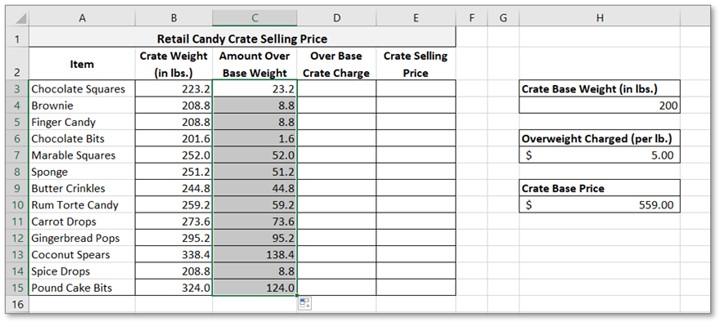
Fig. 7: Example File: Results for the calculation for the “Amount Over Base weight” using absolute referencing.
For completeness, and extra practice, let us work on the next 2 columns, the “Over Base Crate Charge” and the “Crate Selling Price”. For these calculations we will also need absolute referencing for the formulas.
The calculation needed for cell D3 is the “Amount Over the Base Weight” multiplied by the “Overweight Charge”, 23.2 multiplied by $5.00, and the formula would be =C3*$H$7. See figure 8.
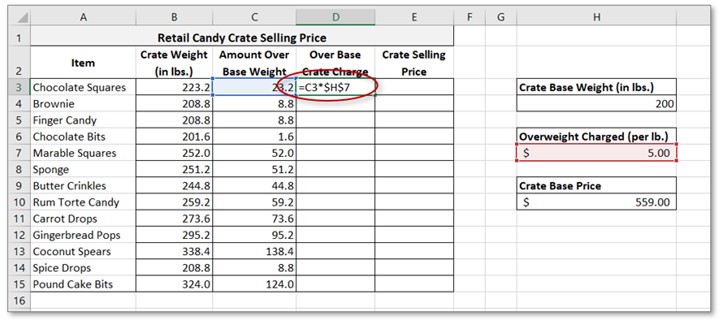
Fig. 8: Details of the calculation for the “Over Base Crate Charge” and absolute referencing. Focusing on cell D3.
After using the fill handle, we get the following results, see figure 9:
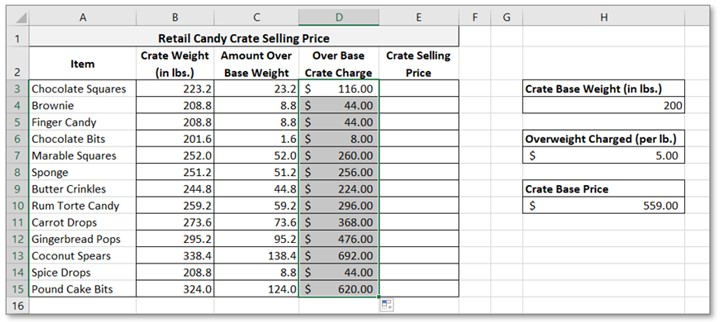
Fig. 9: Example File. The results for the “Over Base Crate Charge”.
The last calculation we need to do is for the cell E3 and here we need to add the “Over Base Crate Charge” to the “Crate Base Price”. As with the previous two calculations we will need absolute referencing. So, the formula for cell E3 would be =D3+$H$10.
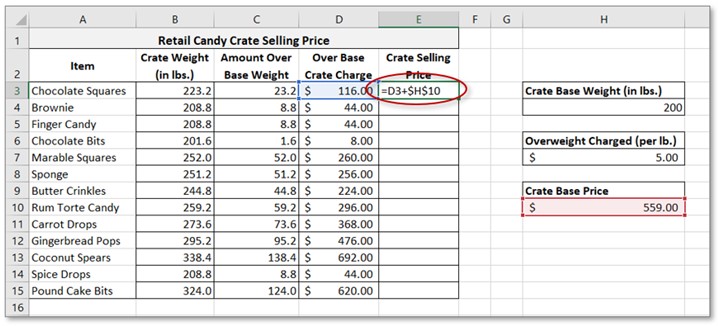
Fig. 10: Example File. Details of the formula used for calculating the “Crate Selling Price”.
After using the fill handle, we get the following final result (see figure 11):
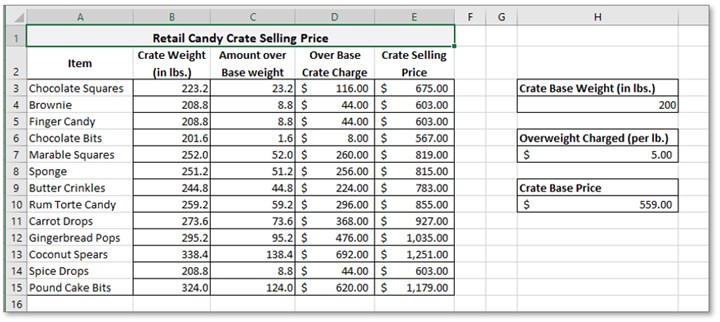
Fig. 11: Example File – Final Result
Absolute referencing is commonly used with formulas, and functions, when we don’t want the cell address to change while we use the fill handle (or do any cut/copy commands). Using the $ to “lock” a location works whether the value in the location is a number or text. Absolute referencing with formulas is, perhaps, one of the most useful foundational concepts in Excel.

Leave A Comment